MCP (Model Context Protocol) connects Linearity to ChatGPT, Claude, and other AI tools, so you can create designs in your Linearity account from a prompt. Your assistant can use the brand design guides you already have access to, helping it create designs that stay on brand.
Designs remain editable. Keep refining them with more prompts, or open them in Linearity and make changes by hand.
Get started
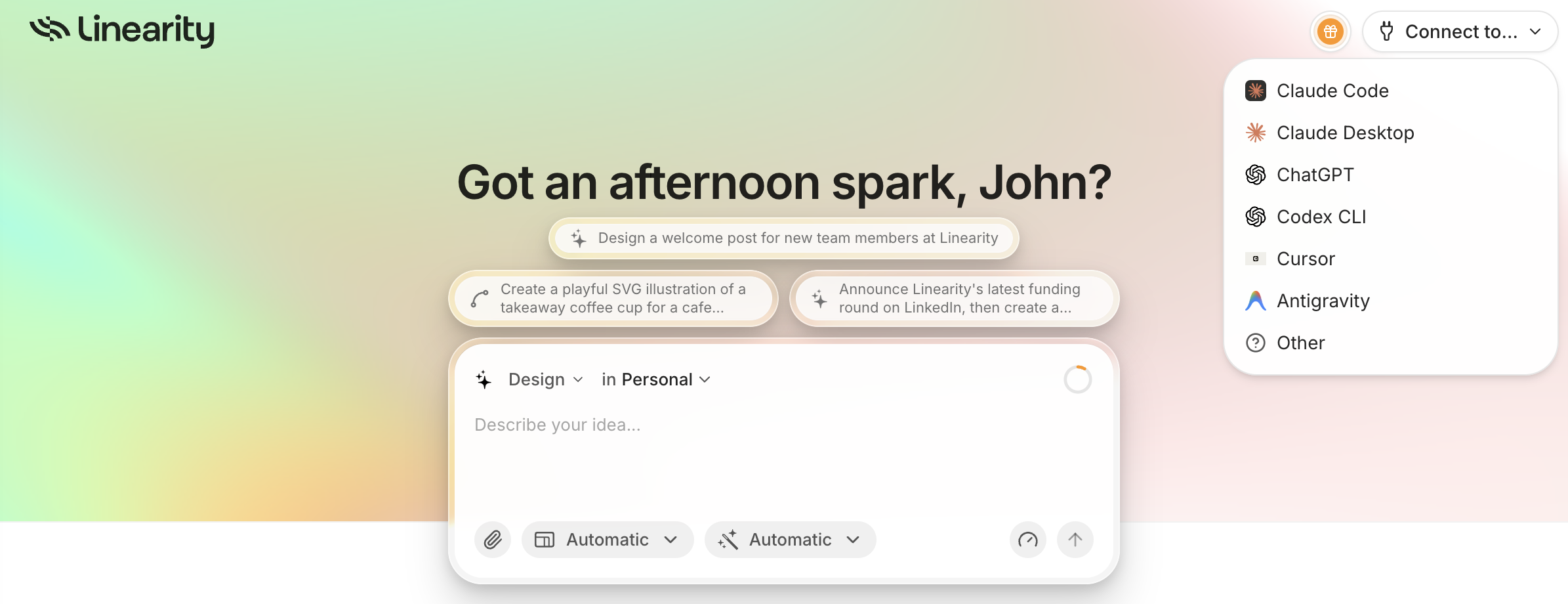
In Linearity, open Connect to… and choose your AI tool. Follow the setup instructions, sign in to Linearity, and approve access.
The connection is limited to Linearity resources you can already access. It can read your design guides and start and manage design generation.
Connect ChatGPT
Linearity is available as a plugin in ChatGPT.
Choose Connect.
Sign in to Linearity and approve access.
In a ChatGPT conversation, type @ and select Linearity.
Ask: “List my Linearity brands” to check the connection.
On ChatGPT Enterprise or Edu, your workspace admin may need to enable Linearity first.
Connect Claude Desktop
In Claude, open Customize → Connectors, then choose + → Add custom connector.
Enter the MCP server URL:
https://cloud.linearity.io/public/mcpLeave the advanced OAuth client ID and secret fields empty, then add the connector.
Click Connect, sign in to Linearity, and approve access.
Enable Linearity from + → Connectors in your conversation.
On Claude Team or Enterprise, an owner must first add the connector under Organization settings → Connectors.
If you used the older Linearity desktop extension, verify the new connection, then disable the old extension and revoke its access token in Linearity’s security settings.
Connect Claude Code
In Linearity, choose Connect to… → Claude Code. Copy the setup prompt and paste it into Claude Code, or set up the connection manually:
Run this command in a terminal:
claude mcp add --transport http linearity "https://cloud.linearity.io/public/mcp"Open Claude Code, run
/mcp, select Linearity, and authenticate.Sign in to Linearity and approve access in your browser.
If you previously configured Linearity with an Authorization header, remove that old server entry before adding this connection.
Connect Codex CLI
Run these commands separately in a terminal:
codex mcp add linearity --url "https://cloud.linearity.io/public/mcp"
codex mcp login linearity
Follow the browser sign-in flow and approve access to Linearity.
Connect Cursor
Add this entry to Cursor’s MCP configuration:
{
  "mcpServers": {
    "linearity": {
      "url": "https://cloud.linearity.io/public/mcp"
    }
  }
}
Replace any existing Linearity entry that contains an Authorization header. Reload the server, use its authentication option, then sign in to Linearity and approve access in your browser.
Connect Antigravity
Add this entry to Antigravity’s MCP configuration:
{
  "mcpServers": {
    "linearity": {
      "serverUrl": "https://cloud.linearity.io/public/mcp"
    }
  }
}
Replace any existing Linearity entry that contains an
Authorizationheader, then reload the server. No client ID or secret is needed.Open Agent Settings → Customizations and click Authenticate next to Linearity.
Sign in to Linearity and approve access in your browser.
Copy the authorization code from your browser, paste it into Antigravity’s settings panel, and click Submit. The server reconnects automatically.
Connect another AI tool
Choose Connect to… → Other in Linearity and follow the instructions for your tool. This flow creates an access token and opens the configuration with the token ready to copy.
The ChatGPT, Claude, Codex CLI, Cursor, and Antigravity connections above use browser sign-in. You do not need to create or copy an access token or client secret for those connections.
Create your first design
Once connected, ask your assistant:
List my Linearity brands.
Then describe the design you want. Include the brand, format, text, and style—for example:
Create an Instagram post for my coffee brand announcing a new seasonal blend. Use our brand design guide and include the headline “Meet your new morning ritual.”
Continue with follow-up prompts to refine the result, or open the design in Linearity to edit it by hand.
Manage your connection
Select Manage connected applications in Linearity’s connection setup to review your connected tools.
Which plan should I use?
Studio is the recommended plan for working with MCP. See the pricing page for what each plan includes.
Does Linearity have a public API?
Linearity does not offer a public API. Use MCP to connect an AI assistant to Linearity.